
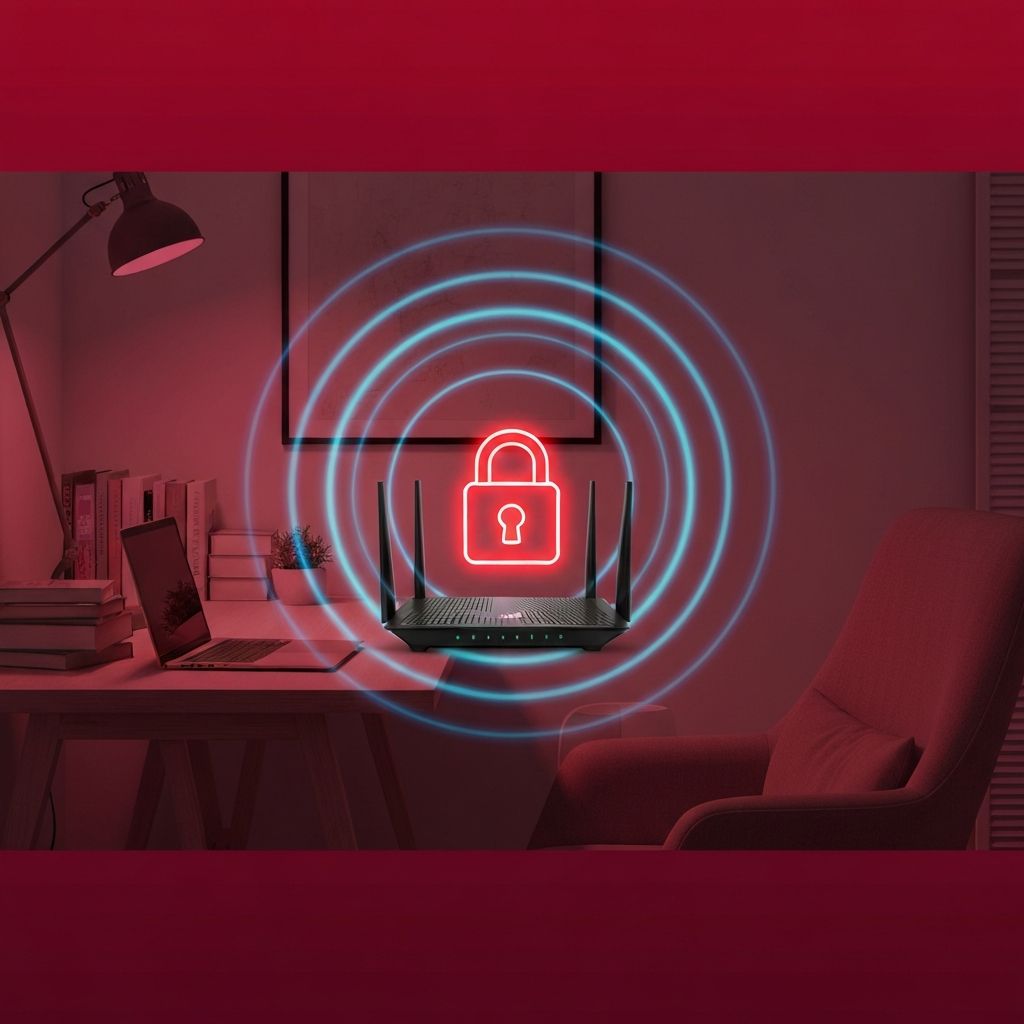
Introduction to Wireless Network Security
Securing a small wireless network is a critical skill in today's connected world, where virtually every home and small office relies on Wi-Fi for internet access. An unsecured or poorly secured wireless network is an open invitation for unauthorized users to access your internet connection, steal sensitive data, distribute malware, or even launch attacks against other networks using your connection as a cover. This lab guide walks you through the essential steps to secure a small wireless network, applying industry best practices that protect your data and devices from common threats.
Wireless networks are inherently more vulnerable than wired networks because the radio signals they use extend beyond the physical boundaries of your home or office. Anyone within range of your wireless access point can potentially detect and attempt to connect to your network. This means that security measures must be implemented at multiple layers — from the encryption protocol used to protect data in transit to the access controls that determine who can connect to the network in the first place.
Before beginning the security configuration process, it's important to understand your current network setup. Identify your wireless router or access point model, note its current firmware version, and familiarize yourself with its administrative interface. Having this information ready will streamline the configuration process and help you identify which security features are available on your specific hardware.
Accessing the Router's Administrative Interface
The first step in securing your wireless network is accessing the router's administrative interface. This is typically done by opening a web browser and navigating to the router's default IP address, which is commonly 192.168.0.1 or 192.168.1.1. You can find your router's specific IP address by checking the documentation that came with the device or by looking at the default gateway address in your computer's network settings.
When prompted for login credentials, enter the router's default username and password. These are often printed on a label on the bottom or back of the router. Common default credentials include "admin/admin," "admin/password," or a unique password printed on the device label. If you've previously changed these credentials, use the updated login information.
Once logged into the administrative interface, your first security action should be to change the default administrator password. Default passwords are widely known and easily searchable online, making any router using default credentials vulnerable to unauthorized access. Choose a strong, unique password that includes a mix of uppercase and lowercase letters, numbers, and special characters, and is at least 12 characters long.
Many modern routers also support changing the default administrator username. If your router offers this option, take advantage of it to add an additional layer of security. An attacker who doesn't know the username will have a much harder time gaining access to your router's settings, even if they manage to guess or obtain the password.
Configuring Wireless Encryption
Wireless encryption is the most important security measure you can implement on your network. Encryption scrambles the data transmitted between your devices and the router, preventing anyone who intercepts the radio signals from reading the contents of your communications. Without encryption, anyone within range can capture and read your network traffic, including passwords, emails, and other sensitive information.
The current recommended encryption standard is WPA3 (Wi-Fi Protected Access 3), which provides the strongest protection available for consumer wireless networks. WPA3 uses Simultaneous Authentication of Equals (SAE), which replaces the Pre-Shared Key (PSK) exchange used in WPA2 and provides stronger protection against offline dictionary attacks. If your router supports WPA3, configure it as your primary encryption method.
If your router or some of your devices don't support WPA3, WPA2 with AES encryption is still a strong and acceptable option. Many routers offer a WPA2/WPA3 transitional mode that allows both WPA2 and WPA3 devices to connect, providing backward compatibility while still offering the stronger WPA3 protection for compatible devices.
Avoid using WEP (Wired Equivalent Privacy) or WPA (without the "2" or "3") as these older protocols have known vulnerabilities that can be exploited using freely available tools. WEP encryption can be cracked in minutes, and the original WPA protocol has similar weaknesses. If your router only supports these older protocols, consider upgrading to a newer model that supports WPA2 or WPA3.
When setting up your encryption key (the Wi-Fi password), choose a strong passphrase that is at least 12 to 16 characters long and includes a mix of character types. Avoid using common words, phrases, or personal information that could be easily guessed. A strong passphrase is your first line of defense against unauthorized access to your network.
SSID Configuration and Management
The Service Set Identifier (SSID) is the name of your wireless network that appears when devices scan for available networks. Proper SSID configuration is an important part of your overall network security strategy, though it should be considered a complementary measure rather than a primary security control.
Change the default SSID to a unique name that doesn't reveal the router manufacturer, model, or your personal information. Default SSIDs like "NETGEAR" or "Linksys" tell potential attackers what type of router you're using, which can help them identify specific vulnerabilities to exploit. Similarly, avoid using your name, address, or other identifying information in the SSID, as this can make you a target for social engineering attacks.
Some security guides recommend hiding the SSID by disabling SSID broadcasting. While this prevents the network name from appearing in casual Wi-Fi scans, it's important to understand that this is not a strong security measure. Hidden SSIDs can still be discovered using network analysis tools, and the process of connecting to a hidden network can actually expose your devices to certain types of attacks. If you choose to hide your SSID, do so as an additional layer of obscurity, not as a primary security measure.
Consider setting up a separate guest network for visitors, IoT devices, or any devices that don't need access to your main network resources. Guest networks are isolated from the primary network, meaning devices connected to the guest network cannot access shared files, printers, or other devices on the main network. This segmentation limits the potential damage if a guest device is compromised.
MAC Address Filtering
MAC (Media Access Control) address filtering allows you to create a whitelist of devices that are permitted to connect to your wireless network. Each network-capable device has a unique MAC address — a hardware identifier assigned by the manufacturer. By configuring your router to only accept connections from known MAC addresses, you add another layer of access control to your network.
To implement MAC address filtering, first collect the MAC addresses of all devices that should be allowed to connect to your network. You can find a device's MAC address in its network settings — on Windows, use the "ipconfig /all" command; on macOS, check System Preferences under Network; on mobile devices, look in the Wi-Fi or About settings.
Once you have the MAC addresses, log into your router's administrative interface and navigate to the MAC filtering section (often found under Wireless Settings or Security). Enable MAC filtering and add each authorized device's MAC address to the whitelist. Save your settings and verify that authorized devices can still connect.
It's important to understand that MAC address filtering is not a foolproof security measure. Skilled attackers can spoof (fake) their device's MAC address to match one on your whitelist, bypassing this filter entirely. For this reason, MAC filtering should be considered a supplementary security measure used in conjunction with strong encryption and other security controls, not as a standalone defense.
Firmware Updates and Router Maintenance
Keeping your router's firmware up to date is a critical but often overlooked aspect of network security. Router manufacturers regularly release firmware updates that patch security vulnerabilities, fix bugs, and sometimes add new features. Running outdated firmware leaves your network exposed to known vulnerabilities that attackers can exploit.
Check for firmware updates through your router's administrative interface — most modern routers have a built-in update check feature. Some routers support automatic firmware updates, which ensure you always have the latest security patches. If your router doesn't support automatic updates, set a reminder to check for updates at least once a month.
In addition to firmware updates, perform regular security audits of your network configuration. Review the list of connected devices to identify any unauthorized connections, check that your encryption settings haven't been changed, and verify that your administrative password is still strong and hasn't been compromised. Regular audits help you catch security issues before they can be exploited.
Consider replacing your router if it's no longer receiving firmware updates from the manufacturer. Older routers that have reached end-of-life status are particularly vulnerable because any newly discovered security flaws will never be patched. Investing in a modern router with ongoing manufacturer support is one of the most effective steps you can take to protect your network.
Advanced Security Configurations
Beyond the basic security measures, several advanced configurations can further strengthen your wireless network's defenses. Disabling Wi-Fi Protected Setup (WPS) is highly recommended, as the WPS PIN feature has known vulnerabilities that allow attackers to brute-force the PIN and gain access to your network, regardless of how strong your Wi-Fi password is.
Reducing the wireless signal power can limit the range of your network, making it harder for attackers outside your premises to detect and connect to it. Many routers allow you to adjust the transmit power in the wireless settings. Reducing the power to the minimum level that still provides adequate coverage for your space limits your network's attack surface.
Enable the router's built-in firewall if it has one, and configure it to block incoming connections that you don't need. Most consumer routers include a basic stateful packet inspection (SPI) firewall that provides adequate protection for home and small office environments. Some routers also offer more advanced features like intrusion detection and prevention.
Consider implementing a VPN (Virtual Private Network) at the router level if your router supports it. A VPN encrypts all traffic leaving your network, providing an additional layer of privacy and security, particularly for sensitive activities like online banking or accessing work resources remotely. Router-level VPN configuration protects all devices on the network without requiring individual device setup.
Testing and Verifying Your Security Configuration
After implementing your security measures, it's important to test and verify that everything is working correctly. Start by attempting to connect to your network from an authorized device using the new encryption key. Verify that the connection is successful and that you can access the internet and other network resources normally.
Next, test your MAC filtering by attempting to connect from a device that is not on the whitelist. The connection should be denied. Also verify that your guest network, if configured, is properly isolated from the main network by attempting to access shared resources from a device connected to the guest network.
Use a Wi-Fi analysis tool to verify that your network is using the correct encryption protocol and that your SSID is configured as intended. These tools can also help you identify any nearby networks that might be interfering with your signal and help you choose the optimal wireless channel for your environment.
Document your security configuration for future reference, including the encryption protocol used, the SSID name, any MAC filtering rules, and the date of the last firmware update. This documentation will be valuable when troubleshooting issues, adding new devices to the network, or performing future security audits. Keep this documentation in a secure location, as it contains sensitive information about your network configuration.