
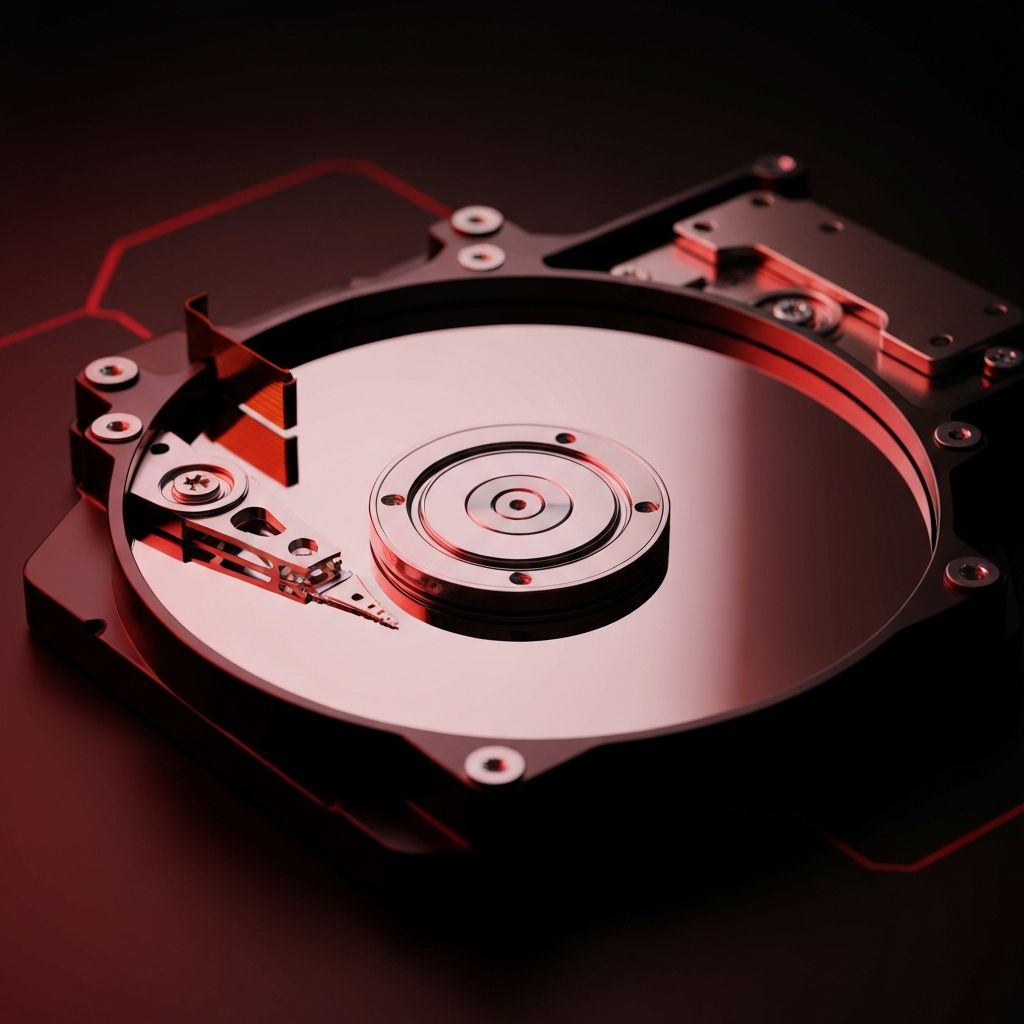
Understanding Bad Sectors on a Hard Drive
A hard drive with 100 bad sectors is a cause for concern, but whether it can be repaired depends on several factors, including the type of bad sectors, the rate at which they are growing, and how the drive is being used. Bad sectors are areas of the hard drive's storage surface that can no longer reliably store data. They are a common issue with traditional hard disk drives and can occur for a variety of reasons, from manufacturing defects to physical damage.
To understand whether repair is possible, it is important to first distinguish between the two types of bad sectors: logical (soft) bad sectors and physical (hard) bad sectors. This distinction is critical because it determines what kind of repair, if any, is feasible and how urgently you need to take action to protect your data.
Logical vs. Physical Bad Sectors
Logical bad sectors, also known as soft bad sectors, are caused by software errors rather than physical damage to the drive surface. These can result from improper shutdowns, power surges, software crashes, or file system corruption. When the operating system writes data to a sector and the error-correction code does not match the data when it is read back, the sector is flagged as bad.
The good news about logical bad sectors is that they can usually be repaired. Operating system tools like Windows Check Disk (CHKDSK) or Linux's fsck utility can identify these sectors and repair the file system errors that caused them. After repair, the sectors can often be used normally again. If your 100 bad sectors are all logical in nature, there is a good chance the drive can be restored to full functionality.
Physical bad sectors, on the other hand, are caused by actual damage to the magnetic surface of the hard drive platters. This damage can result from the read/write head making contact with the platter surface (a head crash), exposure to excessive heat or magnetic fields, vibration, age-related degradation, or manufacturing defects. Physical bad sectors cannot be repaired because the underlying surface damage is permanent.
Assessing the Severity of 100 Bad Sectors
The number 100 may seem alarming, but context matters. Modern hard drives contain millions of sectors, and manufacturers account for a certain number of bad sectors in every drive by including spare sectors that can be remapped to replace bad ones. This process, known as sector reallocation, happens automatically and transparently to the user.
The critical factor is not just the current count of bad sectors but the rate at which new bad sectors are appearing. If a drive developed 100 bad sectors over several years of heavy use, this is less concerning than a drive that developed 100 bad sectors in a matter of weeks. A rapidly increasing bad sector count strongly suggests progressive physical deterioration of the drive, which will only worsen over time.
You can monitor your drive's health using SMART (Self-Monitoring, Analysis, and Reporting Technology) data, which is built into all modern hard drives. Tools like CrystalDiskInfo for Windows, GSmartControl for Linux, or DriveDx for Mac can read and interpret SMART data to give you a comprehensive picture of your drive's health, including the number of reallocated sectors, the current pending sector count, and other critical metrics.
Tools and Methods for Repairing Bad Sectors
If you want to attempt repair on a drive with 100 bad sectors, several tools and methods are available. For logical bad sectors, the first step is to run your operating system's built-in disk repair utility. On Windows, open Command Prompt as administrator and run CHKDSK with the /r parameter, which locates bad sectors and recovers readable information. On macOS, use Disk Utility's First Aid feature, and on Linux, use fsck or badblocks.
For a more thorough approach, third-party tools like HDD Regenerator, SpinRite, or Victoria HDD can attempt to repair both logical and some types of physical bad sectors. HDD Regenerator uses a specialized algorithm to reverse magnetic degradation on the drive surface, which can sometimes restore sectors that operating system tools cannot. SpinRite performs extensive surface analysis and data recovery at the sector level.
Low-level formatting is another option, though it should be considered a last resort. Unlike a regular format, which only clears the file system, a low-level format writes new data to every sector on the drive and creates a new sector map, effectively marking all current bad sectors and removing them from the usable space. This process can take many hours for large drives and will completely erase all data on the drive.
When to Stop Trying to Repair and Replace the Drive
While repair is sometimes possible, there are clear indicators that a drive should be replaced rather than repaired. If the SMART data shows a high or rapidly increasing reallocated sector count, the drive is experiencing progressive physical failure and should be replaced immediately. If the drive makes unusual clicking, grinding, or buzzing sounds, physical damage has likely occurred, and continued use risks further data loss.
A drive with 100 physical bad sectors that is still growing should not be trusted with important data, even if it appears to be functioning normally. The cost of a new hard drive or SSD is minimal compared to the potential cost of data recovery services, which can range from hundreds to thousands of dollars depending on the extent of the damage and the amount of data involved.
As a general rule, any drive that shows signs of physical deterioration should be replaced as soon as possible. Back up all accessible data immediately and plan for a drive replacement. Using a failing drive as a primary storage device is like driving a car with a cracked windshield, it might work for a while, but the risk of catastrophic failure increases every day.
Data Recovery from a Drive with Bad Sectors
Before attempting any repair on a drive with bad sectors, your first priority should always be to recover and back up your important data. Even if the repair process is successful, it can sometimes cause additional data loss, particularly if physical bad sectors are involved.
For basic data recovery, you can connect the affected drive as a secondary drive in another computer and attempt to copy files manually. If certain files are inaccessible due to bad sectors, specialized data recovery software like Recuva, R-Studio, or TestDisk can attempt to read data from damaged areas of the drive.
For critical data that cannot be recovered using software tools, professional data recovery services are available. These services operate in clean room environments and can disassemble the drive to access the platters directly, recovering data that would be impossible to retrieve through normal means. However, professional recovery is expensive, often costing between 500 and 3000 dollars, and should be reserved for truly irreplaceable data.
Preventing Bad Sectors in the Future
While bad sectors are sometimes unavoidable due to manufacturing defects or age-related wear, there are steps you can take to minimize the risk. Always shut down your computer properly rather than forcing a power off, as improper shutdowns can cause logical bad sectors. Use an uninterruptible power supply (UPS) to protect against power surges and outages.
Keep your computer in a clean, well-ventilated environment to prevent overheating, which can accelerate drive degradation. Avoid moving or jarring your computer while the hard drive is spinning, as physical shock is one of the leading causes of head crashes and physical bad sectors. Run regular disk maintenance utilities to catch and repair logical bad sectors before they become problematic.
Consider upgrading to a solid-state drive (SSD) if your current hard drive is showing signs of wear. SSDs have no moving parts, which eliminates the risk of head crashes and mechanical failure. While SSDs can develop their own types of sector failures over time, they are generally more reliable and durable than traditional hard drives for everyday use. Regular backups remain the single most important defense against data loss, regardless of the type of storage device you use.