
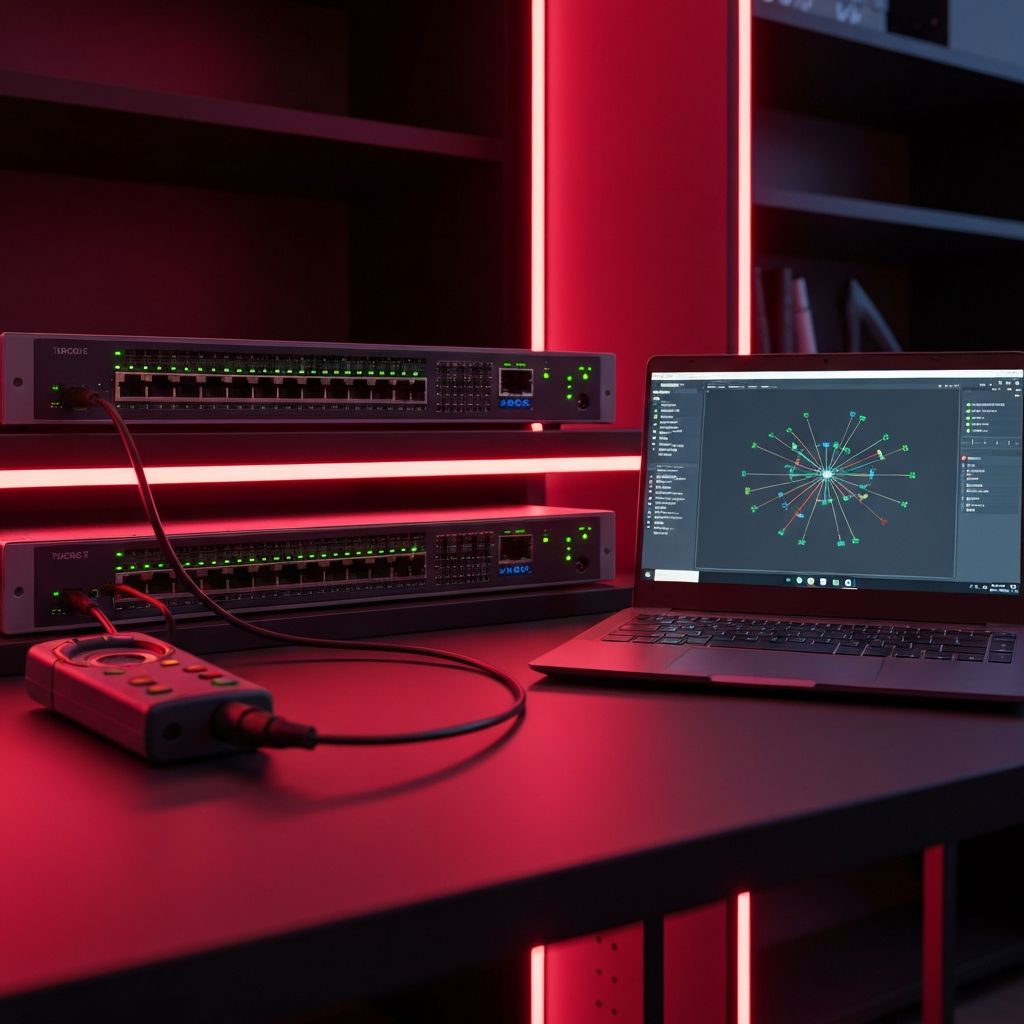
Introduction to the 7.3.3 Lab Exercise
The 7.3.3 Lab is a hands-on exercise commonly found in networking courses and IT certification programs such as Cisco's CCNA curriculum and CompTIA Network+ preparation materials. This lab focuses on developing the practical skills needed to diagnose and resolve network connectivity issues, a fundamental competency for any IT professional. Whether you are a student working through the lab for the first time or a practicing technician looking to refresh your troubleshooting skills, this guide provides a comprehensive walkthrough of the concepts and techniques covered in the exercise.
Network connectivity problems are among the most common issues that IT professionals encounter in their daily work. From a single workstation that cannot access the internet to an entire network segment that has gone offline, the ability to quickly identify and resolve network issues is essential for maintaining productivity and minimizing downtime. The 7.3.3 Lab provides a structured environment in which to practice these critical skills using systematic troubleshooting methodologies.
The OSI Model and Troubleshooting Methodology
Effective network troubleshooting begins with a solid understanding of the Open Systems Interconnection (OSI) model, a conceptual framework that describes how data moves through a network in seven distinct layers. The OSI model provides a systematic approach to isolating network problems by enabling technicians to identify which layer of the network stack is experiencing the issue.
The seven layers of the OSI model, from bottom to top, are the Physical layer, Data Link layer, Network layer, Transport layer, Session layer, Presentation layer, and Application layer. When troubleshooting network connectivity issues, technicians typically work from the bottom up, starting with the Physical layer and progressing through higher layers until the problem is identified and resolved.
The bottom-up approach is effective because lower-layer problems are more common and can manifest as symptoms at higher layers. For example, a loose Ethernet cable (Physical layer issue) can appear to be a DNS resolution problem (Application layer symptom) because the workstation cannot reach the DNS server. By starting at the Physical layer and verifying connectivity at each successive layer, technicians can quickly narrow down the root cause of the problem.
Step 1: Verify Physical Layer Connectivity
The first step in troubleshooting any network connectivity issue is to verify the physical connections. This includes checking that all cables are securely connected to their respective ports, that network interface cards (NICs) are properly seated in their slots, and that all network devices such as switches, routers, and access points are powered on and functioning normally.
Start by examining the Ethernet cable connecting the affected workstation to the network. Check that the cable is firmly plugged into both the workstation's NIC and the wall jack or switch port. Look for any visible damage to the cable, such as kinks, cuts, or crushed sections. If a cable tester is available, use it to verify that the cable is properly terminated and that all eight wires are making good contact.
Next, check the link lights on both the workstation's NIC and the switch port. A solid or blinking green light typically indicates a good physical connection, while an amber light may indicate a problem, and no light at all suggests that there is no physical layer connectivity. If the link lights are not illuminated, try replacing the Ethernet cable with a known-good cable and check again. If the problem persists, try connecting the workstation to a different switch port to rule out a failed port.
Step 2: Verify Data Link Layer Configuration
Once physical layer connectivity has been confirmed, the next step is to verify the Data Link layer configuration. At this layer, the primary concern is ensuring that the workstation's NIC is properly configured and that it can communicate with the local network switch or access point.
On a Windows workstation, open the Command Prompt and type the command ipconfig /all to display detailed information about all network adapters. Verify that the correct network adapter is listed and that it shows a status of Connected rather than Disconnected or Media disconnected. If the adapter is disabled, enable it through the Network Connections control panel or Device Manager.
Check the MAC address of the NIC to ensure it is valid and not duplicated on the network. MAC address conflicts, while rare, can cause intermittent connectivity issues that are difficult to diagnose. Also verify that the adapter's speed and duplex settings are correctly configured to match the switch port settings. Mismatched speed or duplex settings can cause connectivity problems, packet loss, and degraded performance.
Step 3: Verify Network Layer Configuration
The Network layer is where IP addressing and routing are configured, and misconfigurations at this layer are among the most common causes of network connectivity problems. Use the ipconfig command on Windows or the ifconfig or ip addr command on Linux to verify the workstation's IP address, subnet mask, and default gateway.
If the workstation is configured to obtain an IP address automatically via DHCP, verify that it has received a valid IP address from the DHCP server. An IP address in the 169.254.x.x range on a Windows workstation indicates that the DHCP process has failed and the workstation has assigned itself an Automatic Private IP Addressing (APIPA) address. This typically means that the workstation cannot communicate with the DHCP server, which could be due to a network connectivity issue or a problem with the DHCP server itself.
If the workstation has a static IP address, verify that the address is within the correct subnet, that the subnet mask is correct, and that the default gateway is properly configured and reachable. Use the ping command to test connectivity to the default gateway. If you can ping the gateway successfully, the workstation has Layer 3 connectivity to the local network. If the ping fails, the problem is likely at Layer 2 or Layer 3 and requires further investigation.
Step 4: Test Connectivity Beyond the Local Network
After verifying local network connectivity, the next step is to test connectivity to resources beyond the local network, such as the internet or servers on other network segments. Start by pinging a known external IP address, such as 8.8.8.8 (Google's public DNS server), to verify that the workstation can communicate with devices on the internet.
If the ping to the external IP address succeeds, it confirms that the workstation has full Layer 3 connectivity through the router and to the internet. If it fails, the problem may be with the default gateway, the router's configuration, the ISP's connection, or a firewall that is blocking ICMP traffic. Check the router's status and configuration, and verify that the workstation's traffic is not being blocked by a firewall or access control list.
Next, test DNS resolution by pinging a hostname such as www.google.com. If the ping to the IP address succeeded but the ping to the hostname fails, the problem is likely with DNS configuration. Verify that the workstation's DNS server settings are correct and that the configured DNS servers are reachable and functioning properly. Use the nslookup command to manually query the DNS server and verify that it is resolving hostnames to IP addresses correctly.
Step 5: Advanced Troubleshooting Tools and Techniques
When basic troubleshooting steps do not resolve the issue, more advanced tools and techniques may be needed. The traceroute command (tracert on Windows) shows the path that packets take from the workstation to a destination, identifying each router hop along the way. This can help pinpoint where packets are being dropped or delayed in the network.
The netstat command displays active network connections and listening ports, which can help identify whether specific services are running and accessible. The arp -a command displays the ARP cache, showing the MAC addresses of devices the workstation has recently communicated with. This can help identify ARP-related issues and verify that the workstation is communicating with the correct devices on the local network.
Packet capture tools like Wireshark provide the most detailed view of network traffic and can be invaluable for diagnosing complex connectivity issues. By capturing and analyzing the packets being sent and received by the workstation, a technician can identify exactly where the communication process is breaking down, whether it is a failed TCP handshake, a DNS query that goes unanswered, or a routing loop that is causing packets to circulate endlessly.
Common Network Problems and Solutions
Several common network problems frequently appear in the 7.3.3 Lab and in real-world troubleshooting scenarios. Incorrect IP addressing is one of the most common issues, where a workstation has been configured with an IP address that is outside the correct subnet, has a wrong subnet mask, or has an incorrect default gateway. The solution is simply to correct the configuration and verify connectivity.
DHCP failures can occur when the DHCP server is down, when the DHCP scope is exhausted, or when network issues prevent the workstation from reaching the DHCP server. Restarting the DHCP service, expanding the scope, or resolving the underlying network connectivity issue will typically resolve the problem. On the workstation, releasing and renewing the DHCP lease using ipconfig /release and ipconfig /renew can force a new DHCP request.
DNS resolution failures prevent users from accessing websites and network resources by hostname, even though connectivity at the IP level may be working perfectly. Verifying DNS server settings, flushing the DNS cache using ipconfig /flushdns, and testing with alternative DNS servers like Google's 8.8.8.8 or Cloudflare's 1.1.1.1 can help resolve these issues.
Conclusion
The 7.3.3 Lab provides valuable hands-on experience with the systematic troubleshooting methodology that is essential for every IT and networking professional. By following a structured approach that works through the layers of the OSI model, you can efficiently diagnose and resolve a wide range of network connectivity issues. The skills developed in this lab are directly applicable to real-world scenarios and form the foundation for more advanced networking concepts and certifications. Remember that effective troubleshooting is as much about methodology and patience as it is about technical knowledge, and that a systematic approach will always lead to faster and more reliable results than guesswork.